Bundall, Gold Coast QLD 07 5610 1930 [email protected] Serving businesses across Queensland

Uncategorized

Managed security services explained, Creative Technologies

What Is Managed Security? A Practical Guide to 6 Essential Services

By Creative Technologies team Published: 18 November 2026 | Last reviewed: November 2026 Managed security services are an ongoing arrangement where a provider runs and maintains your security controls for you, covering monitoring and alert triage, endpoint protection, email security, patching, incident response and regular reporting, so protection stays current without a dedicated in-house team. This guide suits owners, managers and internal IT staff in medium and large organisations across the Gold Coast, Brisbane and the Sunshine Coast. If security tools are installed but nobody owns them week to week, managed security services are the arrangement that closes that gap. What do managed security services include? A managed security service is not a single product. It is a set of controls that someone is accountable for configuring well, keeping up to date and checking regularly. Managed security services usually cover six groups of work. Monitoring and alert triage. Security tools raise alerts whenever something looks wrong, day or night. The service reviews alerts from key systems, works out which ones point to real suspicious activity and investigates those, so genuine warnings are not lost among false alarms. Firewall alerts form part of that picture, which is why the work sits closely alongside network security. Endpoint protection management. Every laptop, desktop and server needs modern protection that is installed, centrally managed and kept current. The service checks that coverage has no gaps, such as a new starter’s laptop that was never enrolled or a server running an old agent. Email security. Email is where most attacks start, so filtering, anti-phishing and anti-impersonation settings are maintained and tuned as attack methods change. Settings that were right six months ago may not match the phishing emails arriving today. Patch and vulnerability management. Operating system and application updates are tested and applied on an agreed schedule, and known weaknesses are tracked until they are closed. Patching that depends on someone finding a spare hour is usually the first task a busy team lets slide. Incident response. When something does happen, the service escalates and coordinates the response: contain the problem, preserve evidence and get systems back safely. Agreed steps, decided before an incident, make that response faster and calmer. Security reporting and regular reviews. You receive regular summaries of your security posture, the issues found and the actions taken, written in plain English. Reviews compare progress against your security roadmap, so improvements are planned rather than left to chance. The full scope, and how the service fits alongside managed IT or an internal team, is set out on our managed security services page. How managed security services work week to week The service starts with setup. At Creative Technologies, we first review your current tools, policies and risks to find any urgent gaps. Next we agree the security services you need and how they fit with your existing IT support. Then we deploy or take over the security tools and bring configurations up to a sound baseline. From there, the pattern is steady and repetitive by design. Week to week, monitoring runs continuously and alerts are triaged as they arrive. Patch cycles run on the agreed schedule. Accounts are reviewed as staff join, move roles or leave, and multi-factor authentication coverage is checked so new starters are not left unprotected. Changes are made in a controlled, documented way, and regular check-ins keep responsibilities clear between our team and yours. Each reporting period closes the loop: what was done, what was found and what we recommend next. That rhythm is the point. Threats change constantly, and so do your systems. New staff join, applications are added and settings drift over time. Managed security services keep your defences current, with someone accountable for checking that controls are still working as intended. Antivirus, a one-off assessment or managed security services? These three options are often compared as if they were rivals. They do different jobs, and many organisations end up using all three. Option What it is What it covers What happens after setup Suits best Antivirus alone Software installed on each device Known malware on endpoints The software updates itself, but nobody checks coverage, alerts or settings A minimum layer on every device, never the whole answer One-off security assessment A point-in-time review of your posture, gaps and priorities Findings and recommendations at the date of the review The report is delivered and acting on it is up to you A starting point, or an annual check against your roadmap Managed security services An ongoing arrangement with a provider Monitoring, endpoint protection, email security, patching, access reviews, incident response and reporting Controls are maintained, alerts are triaged and posture is reported regularly Organisations that want security owned week to week without hiring a security team The short version: an assessment tells you where you stand, antivirus is one tool inside endpoint protection, and managed security services are the ongoing operation that keeps every control working after the first two have done their job. How managed security services support Essential Eight upkeep The Australian Signals Directorate recommends the Essential Eight as a baseline: eight mitigation strategies that make it much harder for adversaries to compromise systems. Our Essential Eight explained guide sets out the eight strategies and the maturity levels in plain English. Several strategies are habits rather than projects. Patching applications, patching operating systems, multi-factor authentication and restricting administrative privileges all depend on ongoing management: a patch schedule that keeps running, MFA coverage that keeps pace with staff changes, and admin accounts that are reviewed instead of set once and forgotten. That upkeep is exactly what a managed security service does each week, and it produces the records an insurer or auditor may ask to see. Managed security is the day-to-day operation inside a wider cyber security program, which also covers assessments, staff training and incident response planning. The assessment sets your target maturity level; managed security services keep you there. What managed security cannot do One limit needs to be stated plainly. Managed security

What Is Managed Security? A Practical Guide to 6 Essential Services Read More »
Managed IT services Brisbane buyer's checklist, Creative Technologies

Managed IT Services Brisbane: An Essential and Practical Guide for Local Businesses

By Creative Technologies team Published: 18 November 2026 | Last reviewed: November 2026 Managed IT services Brisbane businesses rely on means one provider monitors, maintains and supports your systems for a fixed monthly fee, with remote help day to day and onsite visits when hands are needed. Eight checks separate a sound agreement from a costly one. This guide suits owners and managers of medium and large Brisbane organisations who are comparing managed IT services Brisbane providers, or who suspect their current support is not keeping up. It covers what the service should include, how local and remote support fit together, and the eight checks to run before you sign. What managed IT services in Brisbane should include A managed IT services Brisbane agreement should cover the work that keeps your systems running every day, not just help when something breaks. Monitoring watches servers, endpoints and networks and flags problems early. Patching runs to a schedule instead of whenever someone finds time. A help desk gives your staff one place to call. Cloud and Microsoft 365 administration keeps accounts, licences and access in order. That day to day coverage is the core of managed IT services Brisbane businesses are paying for. Security sits inside that scope, not beside it. Ask which baseline the provider works to, and ask for it by name. Creative Technologies measures its layered protection for networks, devices, email and Microsoft 365 against the Australian Signals Directorate’s Essential Eight. The Australian Cyber Security Centre’s small business cyber security handbook starts with three measures any provider should treat as standard: turn on multi-factor authentication, keep software up to date, and back up your data regularly. If a provider treats any of the three as an optional extra, the rest of the security conversation will not get better. Most agreements take one of two shapes. With fully managed IT, the provider runs your whole environment: support, monitoring, security and planning. With co-managed IT, your internal team keeps the systems it knows best and the provider covers agreed gaps, such as monitoring, security work or projects. Creative Technologies delivers both models, and our managed IT services page sets out the responsibilities you can hand over. Either way, the scope is agreed in writing and the monthly fee is fixed before any work starts. Local team or remote-only provider: the honest trade-off Most day to day support is remote, and that is a strength. A technician can start on a problem within minutes instead of after a drive across town. Password resets, software faults, account changes and most system issues are all handled faster from a desk than from a car. Some work still needs hands on site: new hardware setup, office moves, cabling and network faults, and urgent issues where a device has to be touched. A remote-only provider, whether interstate or offshore, cannot do that part at all. A South East Queensland team can. That difference is the real local question inside any managed IT services Brisbane decision. Creative Technologies is based in Bundall on the Gold Coast, not in Brisbane, and we say so plainly. Our team works onsite in Brisbane for setup, projects and urgent issues, and remote support covers day to day help. The areas covered and the way visits work are set out on our managed IT services Brisbane page. Weigh the travel honestly: ask any provider based outside Brisbane how urgent onsite visits are scheduled, and get the answer in writing before you sign. The 8 checks to run before you sign Run the same eight checks with every provider on your shortlist, and compare the written answers side by side. Together they cover the ground that decides whether a managed IT services Brisbane agreement works in practice: reach, escalation, security, money, onboarding and the exit. Check What to ask A good answer sounds like Red flag answer Onsite reach Which problems get an onsite visit, and how is it scheduled? Named visit types, such as setup, projects and urgent issues, booked around your team No onsite option at all Escalation path Who answers first, and how does an urgent issue move up? A clear path from help desk to senior technicians, with response targets in writing Verbal promises only, nothing in the agreement Security scope Which baseline do you work to, and what gets checked? A named baseline such as the Essential Eight, with MFA, patching and tested backups as standard We handle security, with no framework named Included in the fee What does the monthly fee cover? A written scope covering monitoring, patching, security, help desk and cloud administration A single fee figure with the scope left vague Excluded from the fee What will cost extra? Projects, hardware, after-hours work and out-of-scope items named upfront Exclusions that first appear on an invoice Onboarding What happens in the first weeks? A review of devices, users, security, backups and cloud, then a staged setup We start Monday, with no review step Contract and exit What are the term, the notice period and the exit process? A clear term, fair notice, and handover of documentation, passwords and data defined in the contract Long lock-in, or a charge to release your own data Reporting and reviews What do we see, and how often? Regular plain-English reports and review meetings No reporting unless you chase it The pattern matters more than any single answer. A provider who answers in writing, names a security baseline and defines the exit before you sign is showing you how the relationship will run. Evasive answers at this stage rarely improve once the contract starts. What to do next Write down the problems slowing your team down today: the slow systems, the recurring faults and the security gaps nobody owns. Shortlist managed IT services Brisbane providers that work with medium and large organisations and can attend your sites in person. If your team also works from the Sunshine Coast, check that one agreement covers both areas; our managed IT services on

Managed IT Services Brisbane: An Essential and Practical Guide for Local Businesses Read More »

Co-managed IT vs outsourced IT compared for Queensland businesses, Creative Technologies

Co-Managed IT vs Outsourced IT: A Practical and Essential Guide to 6 Key Differences

By Creative Technologies team Published: 18 November 2026 | Last reviewed: November 2026 Co-managed IT vs outsourced IT is a choice about who runs your technology. Co-managed IT keeps your internal team in charge and adds a provider beside them. Fully outsourced IT hands the whole function to a provider, who becomes your IT department. This comparison suits managers in medium and large organisations across the Gold Coast, Brisbane and the Sunshine Coast. If you need the full definition first, our guide to what co-managed IT is explains the shared model. This article spends its words on the choice itself. The two models in plain terms Co-managed IT means your internal IT team stays in charge. An external provider works beside them and takes on agreed work: monitoring, patching, security management, help desk overflow and projects. The split is written down in a responsibility matrix, so both sides know who owns each task. Fully outsourced IT, usually called fully managed IT, means the provider becomes your IT department. They take responsibility for your devices, users, servers, networks, cloud platforms and security, and meet with your leadership to plan improvements and budgets. Our fully managed IT services page sets out that scope. No internal team directs the work day to day, because the provider is the team. The labels matter less than the split of responsibility. Everything else in the co-managed IT vs outsourced IT choice follows from one question: who sits inside your business, and who sits outside it? Co-managed IT vs outsourced IT side by side The table below compares the two models on six points that usually decide the argument. Decision point Co-managed IT Fully outsourced IT Who runs IT day to day Your internal team, with the provider covering agreed tasks The provider, acting as your IT department Control and business knowledge Your team keeps control, and system knowledge stays inside the business The provider holds day to day knowledge; you set direction and priorities Cost shape Internal salaries plus a monthly fee for the agreed gaps only A monthly fee for the whole function, based on users, devices, sites and scope Access to specialist skills The provider supplies security, cloud and project skills on demand The provider supplies the full skill set across the whole environment After-hours cover Provider monitoring and cover fill the gaps your roster cannot Monitoring and cover are part of the provider’s standard scope Who it suits Organisations with IT staff who are stretched or carry single points of failure Organisations with no internal IT staff, or none they want to keep Read the cost row carefully. Co-managed IT is not automatically the cheaper option, because you keep paying the internal salaries. What changes is what the fee buys: a defined set of gaps, or the entire function. Compare the total cost of the work each model covers, not the fee alone. Control, knowledge and access: the difference that grows On day one, the two models can look similar. Both answer tickets, patch systems and watch alerts. The difference shows up over years, in where knowledge and control live. In a co-managed arrangement, your team keeps the history of your systems: why a server is configured that way, which vendor to call, which workaround your staff rely on. The provider adds capacity around that knowledge. In a fully outsourced arrangement, that history builds up inside the provider instead, and the daily detail sits outside your business. Documentation and reporting become part of what you are paying for. The Australian Signals Directorate’s guidance on engaging a managed service provider says to identify clearly which systems a provider can access and how, keep that record up to date, and give the provider the least privileged accounts the job needs, in named accounts you can trace. That discipline matters more the more you hand over, because a fully outsourced provider may administer your entire network. Several of the ASD’s Essential Eight strategies, such as patching applications and operating systems and using multi-factor authentication, need steady weekly attention. In a co-managed model you decide together who owns each control. In an outsourced model the provider owns them, but your organisation still carries the risk if they slip, so write the expectations into the contract either way. Three questions that decide co-managed IT vs outsourced IT Work through these three questions. For most organisations, the answers settle the choice before price enters the discussion. 1. Do you employ IT staff? If nobody in the business owns IT, co-managed IT has nothing to attach to. Fully outsourced IT is the honest starting point. If you employ IT staff whose knowledge you value, the question becomes what sits around them, not whether they stay. 2. Are they stretched, or sometimes absent? Tickets queue while projects wait, patching slips, and alerts fire at night with nobody watching. Those are gaps a provider can fill beside your team. Leave and sickness are the sharper test. If one person’s holiday stops support, you have a cover problem, not a staffing verdict. A provider’s help desk services can take first-line requests and overflow while your team is away or buried. 3. Which work is actually failing? If the failures cluster in a few areas, such as monitoring, security or project delivery, hand over those areas and keep the rest internal. If almost everything is failing and nobody owns the environment, a partial model will not fix it. Handing the whole function to a provider, with a clear scope, is the cleaner reset. The hybrid middle is where most organisations land In practice, co-managed IT vs outsourced IT is a sliding scale, not a locked door. Few organisations stay at either extreme for long. A common path is to start co-managed, then hand over more tasks as trust builds and the gaps move. The reverse happens too: an organisation starts fully outsourced, later hires an internal IT lead, and pulls strategy and vendor management back inside while the provider keeps the operational load.

Co-Managed IT vs Outsourced IT: A Practical and Essential Guide to 6 Key Differences Read More »

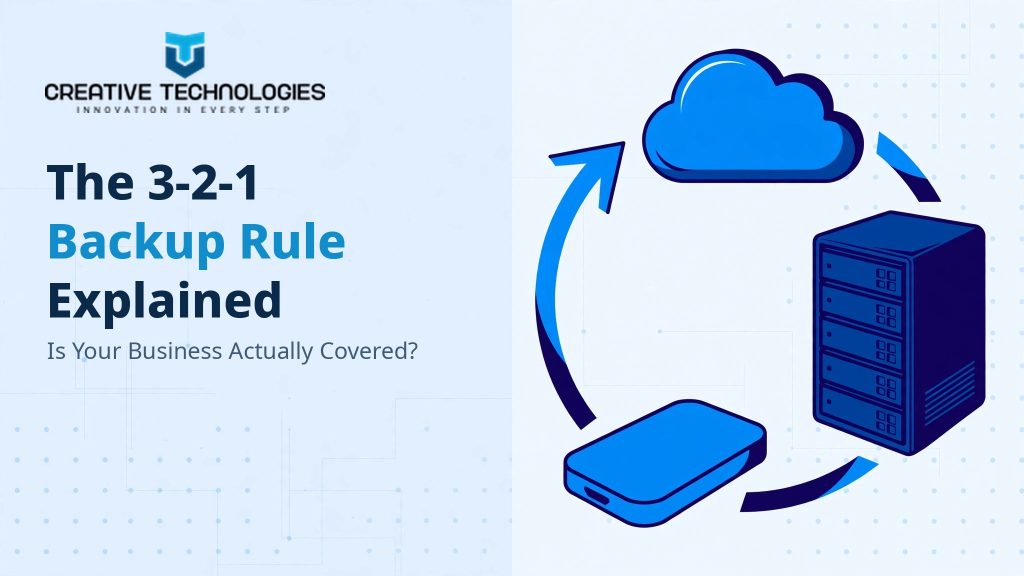
The 3-2-1 backup rule explained, three copies on two media with one copy offsite, Creative Technologies

The 3-2-1 Backup Rule Explained: An Essential and Practical Guide to Getting Covered

By Creative Technologies team Published: 18 November 2026 | Last reviewed: November 2026 The 3-2-1 backup rule keeps three copies of your important data on two different types of storage, with one copy held offsite away from your main systems. Followed properly, it means a failed server, deleted folder or ransomware attack cannot take every copy at once. This guide is for owners and managers in medium and large organisations across the Gold Coast, Brisbane and the Sunshine Coast. If a backup runs every night and you are still not sure it would save you, the 3-2-1 backup rule gives you a clear standard to check it against. What is the 3-2-1 backup rule? The 3-2-1 backup rule spreads copies of your data so no single failure, mistake or attack can remove all of them. Each number answers a different risk. Part of the rule What it means The risk it answers 3 copies Your original data, plus two backup copies One copy is corrupt, deleted or lost 2 different media The copies sit on two different types of storage, such as local backup storage and cloud storage One device or platform fails 1 copy offsite One copy is held away from your main site, separate from your production systems Fire, flood, theft or ransomware reaches everything on site The rule is a floor, not a ceiling. It says nothing about how often you back up, how long you keep copies or how fast you can restore. Those choices depend on how much data each system can afford to lose. Regular backups are also one of the eight strategies in the Australian Signals Directorate’s Essential Eight. The Essential Eight maturity model expects backups of data, applications and settings to be performed and retained in line with business criticality and continuity needs, synchronised to a common point in time, and kept securely. The 3-2-1 backup rule gives that strategy a checkable shape. A worked example of the 3-2-1 backup rule in practice Consider this hypothetical example. Imagine a professional services firm with a file server, a line-of-business application and Microsoft 365 for email and files. Here is how the 3-2-1 backup rule looks when it is set up properly. Copy 1 is the live data. It sits on the server and in Microsoft 365, where staff use it daily. This is the original, exposed to deletion, corruption and attack. Copy 2 is a nightly backup on different storage. Backup software copies the server, application data and settings to separate backup storage on site, so a server hardware failure does not take this copy with it. Copy 3 is an offsite backup in the cloud. The same backup is copied to cloud storage, held separate from the production systems. If the office itself is the problem, this copy is elsewhere. The firm also runs an independent Microsoft 365 backup for email, OneDrive, SharePoint and Teams data, because the live service is copy 1, not a backup of itself. That is the shape of a full data backup and disaster recovery scope: server and workload backup, Microsoft 365 backup, cloud backup for the offsite copy, and recovery testing to prove the copies work. Managed cloud services can hold the offsite copy and look after backup oversight for cloud workloads. Why a synced folder is not a backup Many businesses believe they are covered because their files sync to a cloud folder. Sync is useful. Under the 3-2-1 backup rule, it does not count as a backup copy. Sync copies changes as they happen, including the changes you never wanted. A folder deleted on Monday is deleted everywhere by Monday afternoon, and files encrypted by ransomware are uploaded in encrypted form, replacing the good versions. Version history and recycle bins help with small mistakes, but they run for limited periods and sit under the same accounts staff use daily. A backup keeps separate, dated copies, taken at set times, so you can go back to a point before the problem started and restore data, applications and settings together. The Australian Cyber Security Centre says the same in its guide to securing your devices: back up regularly to an external drive or trusted cloud service, and ensure backups can be restored. The test is simple. If deleting or encrypting a file changes the only other copy you hold, you have sync, not backup, and the 3-2-1 backup rule is not met. Why an always-connected backup can fail in the same incident The second trap is a backup that is always connected to the network it protects. If backup storage stays online and everyday administrator accounts can reach it, an attacker in your network can reach it too. Deleting or encrypting the backups first is a standard early move in a ransomware incident: it removes your way back before any ransom demand arrives. Separation stops one incident from becoming total loss. The Essential Eight maturity model requires that unprivileged accounts cannot access backups belonging to other accounts, and are prevented from modifying and deleting backups. In practice: separate credentials for backup storage, tight control over who can change copies, and at least one copy everyday accounts cannot touch. Backup design therefore sits inside wider cyber security work. The access controls and account hygiene that protect your production systems have to extend to the copies you would rely on if those systems fell over. A backup nobody has restored is a hope, not a plan The 3-2-1 backup rule counts copies. It cannot tell you whether any of them work. A backup job can report success every night while the restore fails, because a setting changed, a database was never included, or the one person who knew the process left. The Australian Cyber Security Centre expects restoration from backups to be tested as part of disaster recovery exercises. Treat that as the standard. Restore one file, then one mailbox, then a full system, and time each one. Compare the results with your recovery objectives: how much

The 3-2-1 Backup Rule Explained: An Essential and Practical Guide to Getting Covered Read More »

Managed IT services cost factors explained for Gold Coast businesses, Creative Technologies

Managed IT Services Cost on the Gold Coast: 7 Smart, Practical Factors

By Creative Technologies team Published: 18 November 2026 | Last reviewed: November 2026 Managed IT services cost has no standard figure on the Gold Coast, because the monthly fee is built from your users, devices, sites, support hours and security scope. A careful provider reviews your environment first, then sets one agreed fee in writing before work starts. This guide is for owners, managers and IT leads in medium and large organisations across the Gold Coast, Brisbane and the Sunshine Coast. If you have been quoted very different figures for the same-sounding service, it explains what drives your managed IT services cost. How managed IT pricing models work Most managed IT services cost is quoted one of four ways: per user, per device, a tiered or all-inclusive monthly fee, or block hours bought in advance. The model matters less than the inclusions, so compare what each fee covers before you compare totals. Pricing model How the fee is worked out What to check before you sign Per user A monthly amount per person, usually covering their devices and help desk access Device limit per user, and what happens when headcount changes Per device A monthly amount for each computer, server or other device under management Whether phones, tablets, printers and network gear count as devices Tiered or all-inclusive A fixed monthly fee for a set scope, sometimes in tiers Which tasks sit in your tier, and what the next tier adds Block hours A set number of support hours bought in advance and used as needed Expiry on unused hours, and whether monitoring and patching are included For most medium and large organisations, a fixed monthly fee for an agreed scope is the easiest model to budget for: the cost stays steady and the inclusions are written down. Block hours suit occasional help, but rarely include the monitoring and patching that stop problems early. Either way, the model explains how your managed IT services cost is built, not what the total should be. What actually drives your managed IT services cost? Seven factors do most of the work. They are the same factors a provider checks at a first review, and they explain why another business’s fee tells you little about your own. 1. How many users you have Every user raises requests, needs accounts set up when they start and removed when they leave, and works on devices that need patching and protection. With per user pricing, your managed IT services cost moves as headcount moves, so ask how starters and leavers change the fee, and when. 2. How many devices you run, and what kind Each computer, server and network device under management needs monitoring, patching and security tooling. Older machines and a long list of servers ask more of a provider than a small, current fleet. Ask whether phones, tablets and printers count as devices. That one definition can shift the total. 3. How many sites you operate More sites mean more networks and internet services to manage, and more on-site visits when something needs hands on it. One office is simpler to support than offices on the Gold Coast, in Brisbane and on the Sunshine Coast under a single agreement. Even with remote support covering day-to-day work, site count still shapes your managed IT services cost. 4. The support hours and after-hours cover you need Support hours are one of the biggest levers in managed IT services cost. Business-hours cover costs less to run than cover that continues around the clock. If your team works evenings or weekends, or an outage at night stops trading, you will pay for wider cover. If you only need an urgent path after hours, say so. Full cover and an emergency-only path sit at very different prices. 5. Your security and compliance scope Endpoint protection, email filtering, identity security and multi-factor authentication settings are standard parts of a managed scope, and the level you need changes the work. Organisations with compliance obligations also need consistent processes, reporting and evidence work on top of the tools themselves. It makes security scope a steady driver of managed IT services cost, not a one-off setup task. 6. The state of your environment at onboarding A tidy, documented environment is quick to take on. One with ageing servers, missing passwords, a patching backlog and no records takes far longer to stabilise. Providers handle the gap differently: remediation charged once, a separate first project, or a fee set expecting the extra work. Ask which applies to you, in writing. This is the part of managed IT services cost buyers most often miss, because it never shows up in a pricing model comparison. 7. How much you hand over A fully managed agreement, where the provider runs everything, carries a larger fee than a shared arrangement where your internal team keeps part of the work. Our co-managed IT services page sets out how that split is agreed and documented. The honest comparison is the total picture: internal salaries plus a provider fee for the gaps, against one provider fee for the whole environment. The costs that sit outside the monthly fee A low monthly fee sometimes just means more of your managed IT services cost sits outside it. Four items catch buyers out most often: Project work. Migrations, rollouts, office moves and upgrades are usually scoped and priced separately from day-to-day support. Our IT consulting work is quoted that way, and most proposals split projects out the same way. Onboarding clean-up. If your environment needs remediation before support starts, that work is normally a one-off cost, named in the proposal rather than discovered on the first invoice. Hardware and licences. New computers, servers and software are purchases, not support. Check whether a proposal includes them or leaves buying to you. The difference can be larger than the gap between two monthly fees. Growth and change. New staff, a new site or a system change partway through a contract will move the fee, so ask how

Managed IT Services Cost on the Gold Coast: 7 Smart, Practical Factors Read More »

Buyer checklist for choosing an IT company Gold Coast businesses can assess on support, security and contract terms

How to Choose an IT Company Gold Coast: An Essential, Practical Checklist

By Creative Technologies team Published 17 November 2026 | Last reviewed: November 2026 Choosing an IT company Gold Coast businesses can stick with for years comes down to evidence, not sales talk. Ask about support hours, local staff, security basics, contract terms and exit rights, then check every answer against reviews and references before you sign anything. This guide is for owners and managers of medium and larger Gold Coast businesses comparing IT providers, or suspecting their current support is not keeping up. It gives you the questions to ask, and the answers that should worry you. Start With Fit: Does This Provider Work With Businesses Like Yours? A provider built for five-person offices will struggle with a multi-site operation, and the reverse is true as well. Check the clients they usually support, where their team is based, and how on-site visits work. Some providers only take businesses with no internal IT staff. Others work alongside an internal team. A mismatch shows up fast: your IT manager gets talked over, or carries work the contract was meant to cover. Many directors start by asking peers which IT company Gold Coast firms like theirs use. Location matters for a plain reason. Most support is remote, until a server dies or a fault needs hands on it. A provider with a real Gold Coast office can attend in person; an interstate or offshore-only service cannot. If your people also work from Brisbane or the Sunshine Coast, ask whether the same agreement and team cover those sites, including managed IT services in Brisbane if you have staff there. The fastest early check costs nothing: the provider’s About page should state its client size, office address and service area plainly. If a website will not say who it serves or where it sits, treat the silence as your first answer. Support Hours and Response Times: Who Answers, and How Fast? Support is the part of the service you will feel every week, so pin down hours, after-hours cover and response targets first. If the answers are vague now, they will not get clearer after you sign. Ask what hours the help desk is staffed, and what happens outside them. “24/7 support” can mean a technician on call, an answering service that takes a message, or a queue nobody reads until morning. Ask who picks up: their own technicians, a shared call centre, or a subcontractor. Ask for response targets in writing. A target that only exists in a sales conversation does not exist. Look for targets by priority, so an outage is not queued behind a password reset, and ask how results get reported to you. Picture your file server failing at 4 pm on a Friday, payroll due Monday. Who answers, how fast, and what happens next tells you more than an hour of talk. Security Questions Every IT Company Gold Coast Provider Should Answer Ask three things first, because the Australian Cyber Security Centre puts them first too: multi-factor authentication, software kept up to date, and data backed up regularly. A provider who treats any of these as an optional extra is telling you something. The ACSC’s guidance for smaller organisations starts with those three measures, then points to Essential Eight Maturity Level One as the next step. You do need a provider who can name the baseline they work to, in plain English, without changing the subject. The detail is in the ACSC small business cyber security handbook (Australian Cyber Security Centre, cyber.gov.au). How is patching scheduled, and who checks it happened? Are backups test-restored, or only assumed to work? Who holds administrator access to your systems, and how is it recorded? If ransomware hit on a public holiday, who calls whom? A provider’s cyber security services page should describe this work in plain terms, not just warnings. Managed, Co-Managed or Break-Fix: Which Model Fits Your Team? The right model depends on what you already have. No internal IT staff usually points to fully managed support. A capable internal person drowning in tickets usually points to co-managed. Break-fix suits almost nobody who relies on their systems every day. With managed IT services, the provider takes responsibility for support, monitoring, patching, security and planning for an agreed monthly scope. With co-managed IT services, your internal team keeps the work it knows best and the provider covers agreed areas, such as after-hours monitoring, patching or project delivery. Break-fix: nothing is monitored, you pay when something breaks, and the provider earns more the worse your systems run. Get the split written down: who patches, who answers the phone, who owns backups, who approves changes. Most disappointment with IT providers is not bad technology. It is two parties each assuming the other was doing a job. The 12 Questions to Ask, and the Answers That Should Worry You You have probably searched IT company Gold Coast and opened a dozen similar websites. Send each shortlisted provider the same 12 questions and compare the written answers. Area Question to ask A good answer sounds like Red flag answer Support hours What hours is the help desk staffed, and what happens after hours? Named hours, plus a clear urgent after-hours path “Call any time” with no detail on who answers Response times Are response targets written into the agreement? Targets in the contract, reported regularly Verbal promises only, nothing in writing Local presence Where is your team based, and who comes on site when needed? A real local office and a named on-site process Vague about location, no on-site option at all Security basics Do you enforce MFA, patching and tested backups as standard? Yes, aligned to ACSC guidance, with restore tests Backups never tested, MFA treated as optional Security framework Do you work to the Essential Eight or a similar baseline? A named framework and a maturity target “We handle security” with no specifics Reporting What reports do we receive, and how often? Regular plain-English reports and review meetings No reporting unless you chase it

How to Choose an IT Company Gold Coast: An Essential, Practical Checklist Read More »

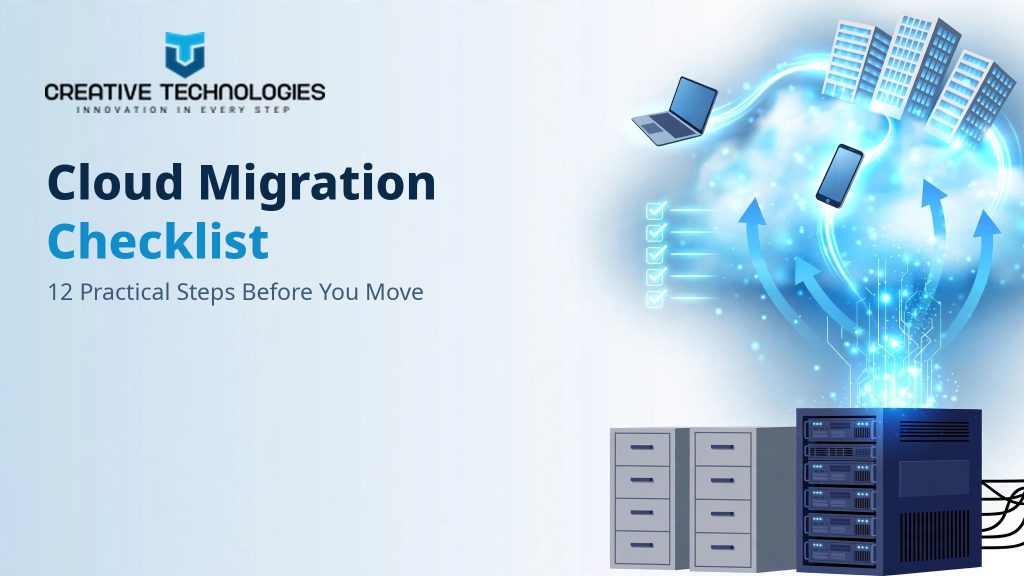
Cloud migration checklist graphic showing a staged move from on-premises servers to cloud platforms, with the Creative Technologies logo

Cloud Migration Checklist: 12 Practical Steps to Avoid Costly Mistakes

By Creative Technologies team Published 17 November 2026 | Last reviewed: November 2026 A cloud migration checklist turns a risky move into a staged one: audit your applications, data and licences, test backups and rollback, set up identity and multi-factor authentication, check bandwidth, train staff, then verify everything after cut-over before you decommission anything. This guide is for business owners and managers planning a move to Microsoft 365, Microsoft Azure or AWS. Work through this cloud migration checklist before you book a cut-over date. Our cloud services page shows how we run cloud platforms across Queensland. What should you fix before a cloud migration, not after? Fix anything that is cheaper to sort out while the old system still runs: messy data, unknown dependencies, untested backups, loose access and missing licences. After cut-over, the same fixes compete with live users, live data and a support queue. Most migration pain is discovered during the move rather than created by it. The application only one person understands. The backup that reported success for a year and was never once restored. Microsoft’s guidance on building a migration plan with Azure Migrate makes the same point: know your estate and its dependencies first, then clear blockers such as network limits and training. A cloud migration checklist gives that work an order, so the cheap fixes happen in the planning week, not the cut-over weekend. The cloud migration checklist: 12 steps in four stages Work through the stages in order. Stages 1 and 2 decide whether the move is safe to schedule; stages 3 and 4 decide whether it stays that way. Tick each step off, and treat this cloud migration checklist as the record of the plan. Stage 1: Audit what you have 1. Inventory every application, server and data store. List what runs the business: line-of-business applications, file shares, databases, email, print services. Note each item’s owner. Discovery tools automate the collection, but Microsoft’s workload assessment guidance warns they can miss undocumented dependencies, so owners must confirm the list. 2. Map dependencies and integrations. Record what each application talks to: the database behind it, the finance system it feeds, the supplier portal it uses. If an application calls a database all day, they move together or stay connected until both are across. Undocumented integrations are the classic cause of a Monday outage after a cut-over. Our business systems integration work starts from this map. 3. Clean up data and retire what you no longer need. Do not migrate duplicate files and the mailboxes of people who left years ago. Archive what you must keep, delete the rest, and retire applications nobody uses. A smaller estate moves faster, costs less to store and fits a shorter cut-over window. 4. Audit licences and subscriptions. Count licences against the people who use them, and check what your agreements entitle you to in the cloud. The surprises here are dull and expensive: extra seats to buy, editions not covered, software paid for twice. Finding them now is cheap; finding them mid-project is a budget variation. Stage 2: Protect the move 5. Back up everything, then test a restore. A backup job that reports success has proved nothing until a restore works. Before any stage moves, back up the systems and test-restore a sample. Decide how much data you can afford to lose and how fast each system must be back. Our data backup and disaster recovery service is built around tested restores. 6. Write a rollback plan with clear triggers. Write down how you return to the old system, who makes the call and what triggers it: failed sign-ins, a database that will not sync, an application that will not open. Agree a deadline too. If the stage is not working by then, roll back rather than troubleshooting on. 7. Set up identity, access and MFA before day one. Create accounts, groups and permissions ahead of the move, with multi-factor authentication on from the start, not in the tidy-up afterwards. MFA is one of the Australian Signals Directorate’s Essential Eight strategies, and accounts without it sit exposed during the busiest week of the project. Our cyber security team treats identity setup as part of the migration. Stage 3: Prepare the ground 8. Check your network and bandwidth. Your internet connection sets the pace for moving data. Measure it before you schedule anything, and plan bulk transfers for quiet hours or over several nights. Microsoft lists network bandwidth and latency among the blockers to settle before a plan is finalised: replication speed decides whether your cut-over window is realistic or wishful. 9. Move in stages and book cut-overs around the business. Start with a pilot group, learn from it, then move the rest in waves. Schedule cut-overs outside your busiest periods and tell staff the dates early. A staged move gives you clean points to pause or roll back, which a weekend marathon never does. 10. Train staff before go-live, not after. People need to know how to sign in, where their files live and what to do when something looks different. Short pre-move sessions and first-week guides prevent most support tickets and workarounds. Training belongs in the migration budget, not in someone’s spare time. Stage 4: Prove it worked 11. Test against a written post-move checklist. Test what the business does: sign in, open and save files, print, run the line-of-business application, send and receive email, process one order. Microsoft recommends functional, integration, security and performance testing after a migration, with time in the plan for fixes. Keep the old system running until testing passes, and record results against your cloud migration checklist. 12. Review security settings and costs in the first month. Cloud environments drift. Permissions spread, test resources keep running and bills creep up. Book a review to check access, confirm backups run, remove whatever the migration left behind and compare the first bill with the plan. Decommission the old servers only after that review. Which mistakes make a cloud move expensive? These mistakes

Cloud Migration Checklist: 12 Practical Steps to Avoid Costly Mistakes Read More »

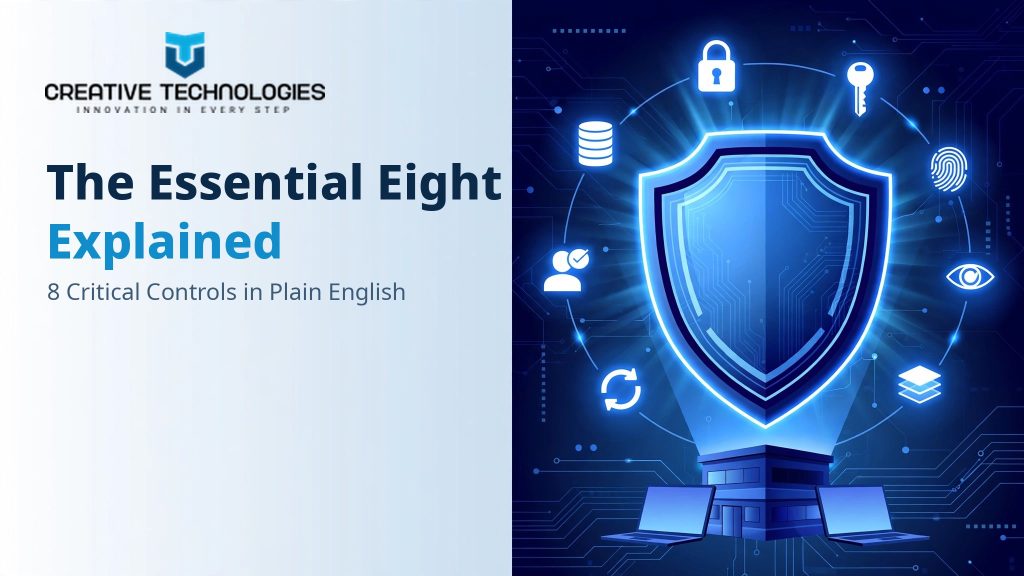
Essential Eight explained: the eight ASD mitigation strategies and maturity levels zero to three

Essential Eight Explained: A Smart Guide to 8 Critical Controls

By Creative Technologies team Published: 17 November 2026 | Last reviewed: November 2026 The Essential Eight is the Australian Signals Directorate’s baseline of eight mitigation strategies that help prevent common cyber attacks, limit the damage and speed up recovery. Each strategy is graded across four maturity levels. It is recommended guidance, not a law. Written for owners and managers of Australian businesses who keep hearing the framework mentioned by an insurer, a customer or their IT provider, and want an answer on what it asks of them. What is the Essential Eight? The Essential Eight is a set of eight mitigation strategies published by the Australian Signals Directorate (ASD) through its Australian Cyber Security Centre (ACSC). ASD drew the eight from its longer Strategies to Mitigate Cyber Security Incidents: the measures that counter the attack methods it deals with most. The framework was designed to protect internet-connected IT networks. A maturity model, first published in June 2017 and updated regularly, sets out what each strategy requires at four levels of strength. It is grounded in ASD’s incident response and penetration testing work, not theory. The full guidance is free on cyber.gov.au: Essential Eight explained. The 8 strategies in plain English The names below are ASD’s; the plain-English column is ours. Read the list as a set: each strategy covers a gap the others leave open. Strategy What it means in plain English What it helps stop Application control Only software on an approved list can run on workstations and servers. Anything else is blocked from starting. Ransomware and other malware that arrive as unapproved programs, scripts or installers. Patch applications Security updates for browsers, Office, PDF readers, email clients and similar software are applied on a set schedule. Attacks that exploit known, already-fixed flaws in everyday software. Configure Microsoft Office macro settings Macros are switched off for staff who do not need them, and macros in files from the internet are blocked. Booby-trapped Word and Excel files that run malicious code when opened. User application hardening Risky browser features are turned off, such as Java and ads from the internet, and users cannot change the settings back. Attacks delivered through web pages and browser features. Restrict administrative privileges Admin accounts are kept separate from everyday accounts, limited to the few people who need them, and blocked from email and web browsing. An attacker who steals one password using it to take over the whole network. Patch operating systems Operating systems on workstations, servers and network devices are kept supported and patched to a schedule. Exploits aimed at known flaws in Windows and other operating systems. Multi-factor authentication Logging in needs a password plus a second check, such as approving a prompt in an authenticator app. Stolen, guessed or reused passwords being enough on their own to get in. Regular backups Backups of important data and system settings run regularly, are kept apart from the main network, and are tested by restoring them. Losing your data for good, or facing a ransom demand with no other way back. ASD groups the eight into three jobs: preventing attacks, limiting the extent of an attack once someone is in, and recovering data and system availability. Four strategies prevent, three limit, and one, regular backups, recovers. The entry points are ordinary ones: unpatched internet-facing services, and stolen or guessed passwords. How do the maturity levels work? Each strategy is scored from Maturity Level Zero to Maturity Level Three. The levels are not a measure of effort or budget. ASD defines each level by the tradecraft of the attacker it is designed to resist. Maturity Level Zero means weaknesses in your overall posture. The strategy is missing or too weak to count on. Maturity Level One is aimed at opportunistic attackers using widely available tools and techniques, hunting for any victim, not a chosen one. Maturity Level Two steps up to attackers willing to invest more time in a specific target, with better tools, deliberate phishing and attempts to get around weak multi-factor authentication. Maturity Level Three addresses adaptive attackers who rely less on public tools, move quickly when new exploits appear, and may steal authentication tokens to bypass even strong multi-factor authentication. ASD’s advice is to lift all eight strategies to the same level before chasing the next one, because they are designed to complement each other. Seven strategies at Level Two with backups at Zero is not a Level Two business: your weakest strategy sets your real position. The requirements behind the levels are specific. At Maturity Level One, patches for internet-facing services are due within two weeks of release, tightened to 48 hours if an exploit exists. Office macros in files from the internet are blocked, and privileged accounts cannot browse the web or read email. This is checkable, evidence-based work, not a self-declared score. Is the Essential Eight a law your business must follow? For a private business, no. The framework is a recommended baseline, not legislation, and nobody will fine you for ignoring it. The binding obligation sits inside government: non-corporate Commonwealth entities must implement all eight strategies to Maturity Level Two under the Protective Security Policy Framework. In practice, the pressure arrives by contract rather than by law. Cyber insurers ask about multi-factor authentication, patching and backups before offering cover. Government tenders and larger customers flow their own obligations down to suppliers. For many businesses the framework is voluntary right up until a renewal, a tender or a new client makes it a condition. One myth is worth clearing up. There is no certificate to earn or buy. ASD’s maturity model states plainly that there is no requirement for an organisation to have its implementation certified by an independent party. What you can hold is an assessment against the model, with evidence behind it. Where should a small business start? Start by aiming for Maturity Level One across all eight strategies. It is the level ASD designed for the high-volume, opportunistic attacks that hit businesses of every size,

Essential Eight Explained: A Smart Guide to 8 Critical Controls Read More »

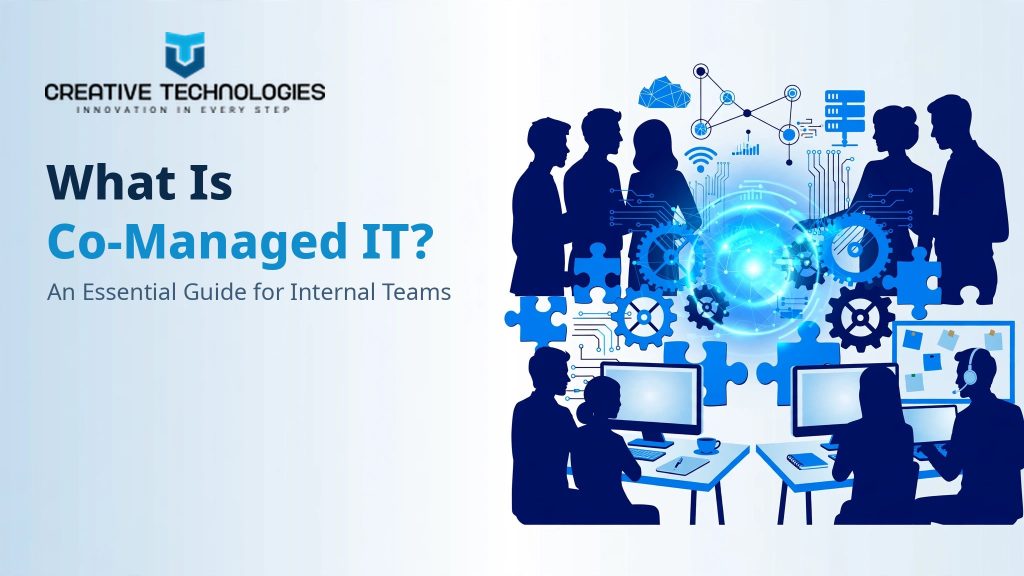
Co-managed IT explained for internal IT teams, Creative Technologies

What Is Co-Managed IT? An Essential and Practical Guide for Internal Teams

By Creative Technologies team Published: 17 November 2026 | Last reviewed: November 2026 Co-managed IT is a support model where an external provider works alongside your internal IT team instead of replacing it. Your team keeps control of daily priorities, while the provider fills agreed gaps such as monitoring, security, after-hours cover and project work. This guide suits managers and internal IT staff in medium and large Queensland organisations. If your team is capable but stretched, and you want extra coverage and skills without another hire or a loss of control, co-managed IT is the model built for that situation. What does a co-managed IT provider take on? Most organisations hand over the work that never stops, needs specialist skills or breaks when one person is away: monitoring and patching, security management, help desk overflow and project delivery. Your internal team keeps the systems and decisions it knows best. The handovers usually fall into four groups: Monitoring and patching. Tools watch servers, endpoints and networks around the clock and flag problems early. Patching runs on a schedule your team agrees to, instead of whenever someone finds a spare hour between tickets. Security management. Endpoint protection, email filtering, access reviews and multi-factor authentication settings need attention every week. Several of the Australian Signals Directorate’s Essential Eight mitigation strategies depend on that steady upkeep, and it is often the first thing a stretched team drops. A managed security services scope can sit inside a co-managed arrangement, so the controls get checked by people whose job is to check them. Help desk overflow and leave cover. When tickets spike, or your IT person is on leave or sick, the provider’s help desk services take first-line requests so your staff are not left waiting. Your own team stops losing whole days to password resets and printer faults. Project capacity. Migrations, office moves and system rollouts need blocks of focused time that day-to-day support rarely allows. The provider can run the project, or supply the extra hands, while your team keeps the business running. Planning work such as roadmaps and system reviews can sit with IT consulting support where you need it. Notice what is missing from that list. Strategy, budgets, vendor relationships and final decisions stay with your business. A co-managed arrangement adds hands and skills underneath your team. It does not move your team aside. How co-managed IT works alongside your internal team It starts with a responsibility matrix: a written split that names who owns each task, which tools both teams share and how work escalates in each direction. Both sides see the same tickets and documentation, and the split is reviewed regularly as your needs change. At Creative Technologies, setup follows four steps. We review your current environment and where your team is stretched, agree the split in writing, then set up monitoring, security and access so support can start without disruption. After that, both teams work to the split and adjust it at regular reviews. The full scope is set out on our co-managed IT services page. Be clear-eyed about the trade-off. A shared model needs coordination time: short regular check-ins, shared notes and one agreed way to log work. If both teams keep separate records, or the split lives in someone’s head instead of on paper, tasks fall between the two and each side assumes the other has it covered. The written matrix is not paperwork for its own sake. It is the thing that makes the model work. Fully in-house, co-managed or fully outsourced: which model fits your team? The honest answer depends on two things: whether you already employ IT staff, and how much of the workload they can cover well. The table below compares the three models on the points that usually decide it. Decision point Fully in-house Co-managed IT Fully outsourced Who runs IT day to day Your own staff only Your staff plus an external provider, to an agreed split The provider acts as your IT department Control and business knowledge Highest. Everything stays internal Your team keeps control and local knowledge The provider holds the knowledge; you set direction Cover outside office hours Only if you roster and pay for it Provider monitoring and cover fill the gaps Included in the provider’s scope Specialist skills Limited to who you can hire Provider supplies security, cloud and project skills on demand Provider supplies the full skill set Cost shape Salaries, superannuation, tools and training for every role Internal salaries plus a monthly fee for the agreed scope Monthly fee based on users, devices and scope Suits best Large organisations with a full IT department Organisations with IT staff who are stretched Organisations with no internal IT staff For a business with capable IT staff who cannot cover everything, co-managed IT is usually the fit, because it adds coverage and skills without removing control. If you employ no IT staff at all, fully managed IT services are the cleaner starting point, and any provider worth using will say so rather than sell you a shared model with nobody to share with. When co-managed IT is the wrong choice Co-managed IT is not a cheaper way to avoid a hard decision. If any of the following sound familiar, fix that first or choose a different model. There is no internal IT person. With nobody inside the business to own the relationship and the day-to-day calls, a shared model has nothing to attach to. Fully managed IT is the honest answer here. The plan is to quietly replace someone. The model runs on trust between the two teams. If your IT person expects to be managed out, they will stop sharing the knowledge the whole arrangement depends on. Nobody will document anything. Shared tools and shared notes are the price of admission. If documentation stays in one person’s head, gaps and double-ups follow within months. You only need one task covered. If all you need is after-hours monitoring or a single migration, buy that service on

What Is Co-Managed IT? An Essential and Practical Guide for Internal Teams Read More »

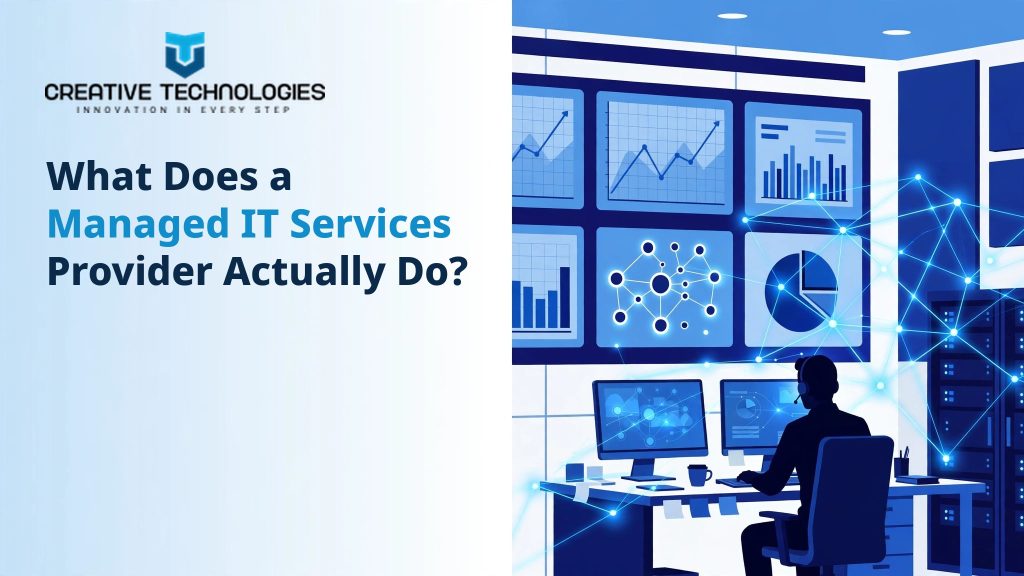
Managed IT services provider support engineer monitoring business systems on dashboards

What Does a Managed IT Services Provider Actually Do? A Practical Guide to 7 Essential Jobs

By Creative Technologies team Published 17 November 2026 · Last reviewed: November 2026 A managed IT services provider is an external team that runs your business technology day to day: supporting staff, monitoring systems, applying patches, managing security and backups, and planning ahead, all under one agreement for a predictable monthly fee instead of hourly repairs. If IT currently means calling someone when things break, this guide explains what changes when a managed IT services provider takes over. It covers the seven jobs in a typical agreement, what sits outside it, and what to ask before you sign. If you would rather look at the service itself, see our managed IT services page. What does a managed IT services provider do each day? Most of the work is steady and unglamorous: answering staff questions, watching system health, applying updates, checking backups and keeping security settings tight, so small faults get fixed before they cost your team hours. 1. A help desk your staff can actually reach When a password fails, a laptop dies or the printer picks the worst possible moment, your staff need one place to go. A managed IT services provider runs a help desk that logs every request, sorts it by business impact and tracks it through to a fix. Most issues are sorted remotely, which is usually fastest. Problems that need hands on the hardware get an on-site visit instead. 2. Monitoring systems before they fail Monitoring tools watch your servers, endpoints, network and key cloud services, and flag trouble early: a failing drive, a backup that missed, a security event needing a human. Your managed IT services provider acts on those alerts, often before staff notice anything is wrong. It’s the least visible job here, and prevents the most bad days. 3. Patching and routine maintenance Software updates close security holes attackers look for, yet patching is the task busy teams postpone. A provider schedules updates for operating systems and applications, plans them around your hours and tells staff what is changing first. Maintenance also covers housekeeping: account clean-ups, licence checks, removing leavers’ access. 4. Managing security every day, not once a year The daily work covers endpoint protection, email filtering and user identities, held to an agreed standard: multi-factor authentication on, admin rights tight, starters and leavers handled properly. It’s ongoing work, not a one-off project. Deeper uplift against the Australian Government’s Essential Eight usually sits in a dedicated cyber security program alongside it. 5. Checking backups and being ready to restore Backups only count if they run and can be restored. Your managed IT services provider monitors backup jobs, follows up failures and watches the data copy you would rely on after ransomware or hardware failure. Ask any provider when they last tested a restore. A backup nobody has ever restored is a hope, not a plan. 6. Administering Microsoft 365 and cloud platforms Email, files and meetings live in platforms like Microsoft 365, Azure and AWS, and someone has to run them: accounts, licences, access controls and costs. Your provider handles the administration as part of the agreement, often alongside cloud services work for migrations and bigger changes. 7. Planning ahead and running projects The final job is looking past this week: regular review meetings on what is working, what is ageing and what needs budget next year. Migrations, office moves and rollouts run as planned projects alongside day-to-day support, instead of landing on the staff member with the least full plate. That’s the difference between having an IT plan and living with a series of surprises. Managed IT services or break-fix support: what actually changes Break-fix support is simple: something breaks, you call, you pay for the repair. A managed IT services provider flips the order: it is paid to keep things running, so the incentive is fewer breakdowns, not more billable emergencies. Area Break-fix support Managed IT services When work happens After something fails Continuously, before failures disrupt staff How you pay Per call-out or per hour A set monthly fee for an agreed scope Monitoring None between visits Systems watched, alerts acted on Patching When someone remembers Scheduled and coordinated with your team Security Arranged by you, product by product Endpoint, email and identity security managed to an agreed standard Planning None Regular reviews, budgets and a forward plan If your team loses time whenever technology fails and nobody owns patching or security, managed IT is usually the better fit. If your setup is small, stable and rarely changes, paying per incident can be the sensible option. What a managed IT services provider does not do A good provider is clear about the edges of the service, because most disappointment with outsourced IT starts with an assumption nobody wrote down. Decisions stay with you. A managed IT services provider can recommend which accounting platform or phone system to buy, but the call, and the budget, are yours. Specialist software belongs to its vendor. Your provider will troubleshoot line-of-business applications and deal with the vendor for you, but product faults stay with the vendor. Cover depends on the agreement: after-hours support, on-site response and project work count only if the scope says so. Read that part closely. If your internet connection fails, a provider can diagnose it and chase the carrier, but can’t fix the carrier’s network. A provider can only manage what it can see. Tools staff sign up for quietly sit outside monitoring and backup until they are brought into the open. Fully managed or co-managed: how the work gets split Fully managed IT hands the whole environment to the provider. Co-managed IT keeps your internal team in charge and adds the provider’s capacity where your team is stretched. Fully managed, the provider acts as your IT department: devices, users, servers, networks, cloud platforms and security, all with one accountable team. With co-managed IT services, the split is agreed in writing first, in a responsibility matrix. Your team keeps the systems it knows best while the provider

What Does a Managed IT Services Provider Actually Do? A Practical Guide to 7 Essential Jobs Read More »

Scroll to Top